Google Docs MLA Format Settings: Problem and Fix
Each example shows a problem students run into with MLA format Google Docs settings, and the menu path that fixes it. Menu names match Google's current help pages; your screen may differ slightly if Google updates the menus.
ProblemA new document opens in Arial 11, the Google Docs default.
Fix in Google DocsSelect all (Ctrl + A or Cmd + A), choose Times New Roman in the font menu and set the size to 12.
MLA asks for a readable font; Times New Roman 12 is the safe choice.
ProblemLines are 1.15 spaced, or extra space appears between paragraphs.
Fix in Google DocsFormat > Line & paragraph spacing > Double. Then open Custom spacing and set Before and After to 0.
MLA uses double spacing throughout, with no extra blank lines.
ProblemInsert > Page elements shows no header, or headers vanished.
Fix in Google DocsFile > Page setup > Pages > OK. Then Insert > Page elements > Page number.
Headers and page numbers don't work in pageless format.
ProblemThe page number appears at the top left or bottom of the page.
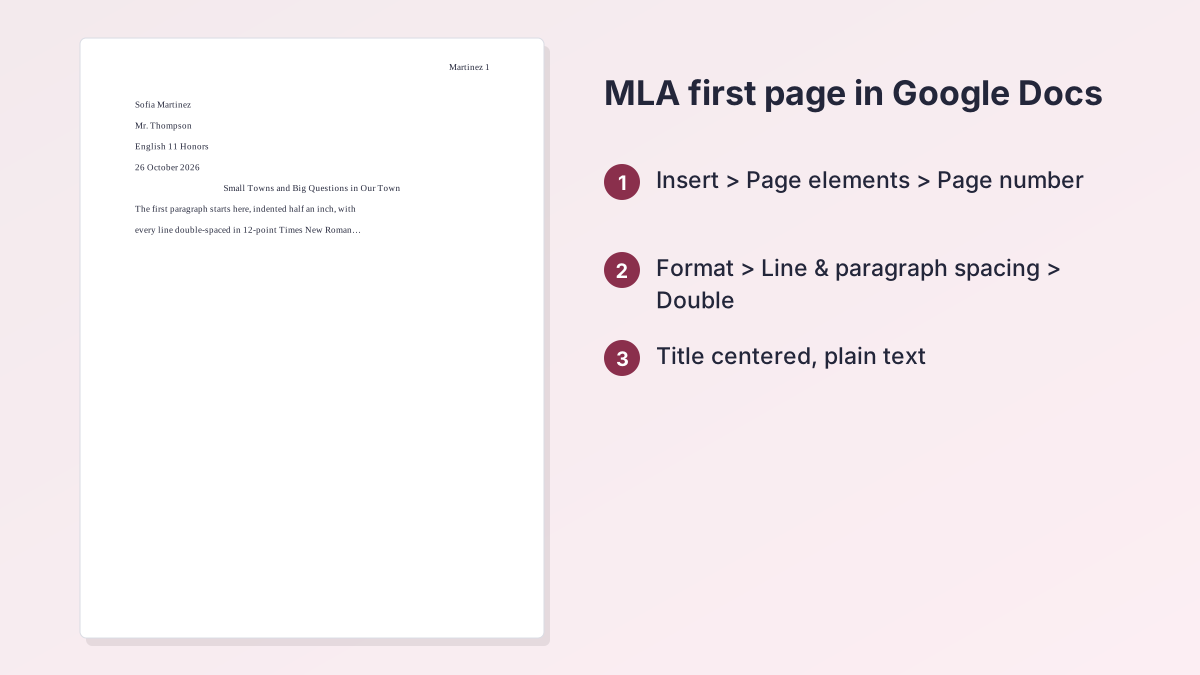
Fix in Google DocsInsert > Page elements > Page number, choose the top-right option, then type your last name and a space before the number.
MLA puts the running head at the top right of every page.
ProblemEach paragraph starts with five spaces typed by hand.
Fix in Google DocsFormat > Align & indent > Indentation options > Special indent > First line, 0.5 inch.
A real indent stays even when you edit the text.
ProblemLong entries wrap back to the left margin.
Fix in Google DocsFormat > Align & indent > Indentation options > Special indent > Hanging, 0.5 inch > Apply.
Every line after the first moves in half an inch.
ProblemThe class portal accepts only .docx files.
Fix in Google DocsFile > Download > Microsoft Word (.docx).
Open the download once to check that the header and indents came through.
How to Set Up MLA Format on Google Docs, Step by Step
This is how to set up MLA format on Google Docs in a new document: do these steps in order. They take about five minutes and follow the MLA Handbook, 9th edition.
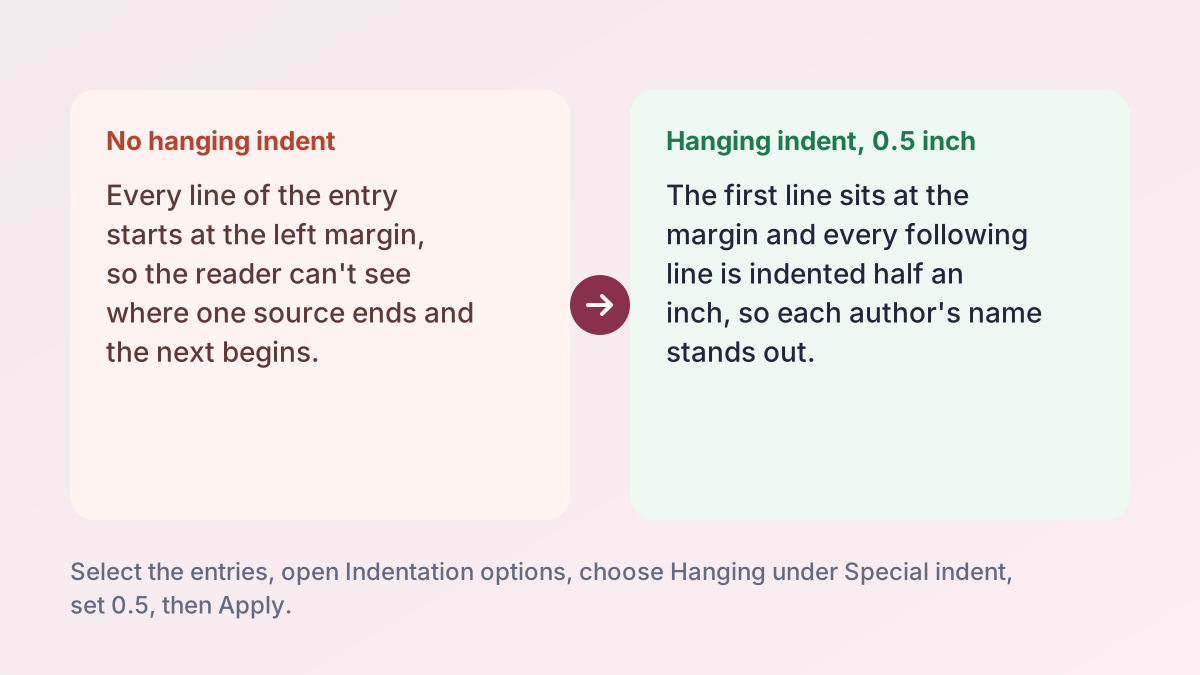
- Set pages and margins. Go to File > Page setup, choose Pages, make all four margins 1 inch, and click OK.
- Choose font and spacing. Select all, pick Times New Roman at 12 point, then Format > Line & paragraph spacing > Double.
- Add the page header. Go to Insert > Page elements > Page number, choose the top-right option, and type your last name and a space before the number.
- Type heading and title. At the left margin, type your name, instructor, course and date on separate lines, then center your title on the next line.
- Indent your paragraphs. Use Format > Align & indent > Indentation options to set a first-line indent of 0.5 inch for the body.
- Format the Works Cited. Add a page break, center Works Cited, then give the entries a 0.5-inch hanging indent.
MLA Format Google Docs Settings at a Glance
MLA format Google Docs setup comes down to a handful of settings. The table lists what the MLA Handbook asks for, what Google Docs does by default, and where to change it. If you want the heading and running head done for you, the MLA Title Page Generator builds a correct first page that you can download and open in Google Docs.
| Setting | MLA 9 asks for | Where to change it in Google Docs |
|---|---|---|
| Format | Pages you can number | File > Page setup > Pages |
| Margins | 1 inch on all sides | File > Page setup > Margins |
| Font | Readable, such as Times New Roman 12 | Font and size menus on the toolbar |
| Spacing | Double, throughout | Format > Line & paragraph spacing > Double |
| Running head | Last name and page number, top right | Insert > Page elements > Page number |
| Paragraph indent | 0.5 inch, first line | Format > Align & indent > Indentation options |
| Works Cited indent | 0.5 inch hanging indent | Indentation options > Special indent > Hanging |
Why Pages format comes first
New Google Docs sometimes open in pageless format, which shows one long scrolling page. Google's help page on headers and page numbers says these features aren't available in pageless documents, and headers disappear from view if you switch an existing document to pageless. Margins and page size also need Pages format. So switch to Pages before anything else: File > Page setup, choose Pages at the top, and click OK.
Font, Double Spacing and Margins
In MLA format Google Docs papers, these three settings affect every line, so set them before you type.
Font and size
Google Docs opens new documents in Arial 11. MLA doesn't require one font. It asks for a readable typeface in which regular and italic type look clearly different, at a size between 11 and 13 points. Times New Roman 12 is what most US teachers expect. Select all with Ctrl + A (Cmd + A on a Mac), then choose the font and size on the toolbar.
Double spacing
Go to Format > Line & paragraph spacing > Double, or use the line spacing button on the toolbar. While you're there, open Custom spacing and make sure the spacing before and after paragraphs is 0. MLA double-spaces everything, including the heading, block quotations and the Works Cited list, with no extra blank lines between paragraphs.
One-inch margins
Open File > Page setup. Google's page setup help lists margins alongside orientation, paper size and page color. Google Docs already uses 1-inch margins by default, so you usually only need to confirm them. Paper size should be Letter for US schools.
How to Do an MLA Header on Google Docs
The running head is your last name and the page number, at the top right of every page, half an inch from the top. Google Docs numbers the pages for you once you set it up, and it's the step most students skip when they learn how to set up MLA format on Google Docs.
Add the page number
- Go to Insert > Page elements > Page number.
- Choose the option that puts the number at the top right on every page, including the first.
- The cursor jumps into the header. Click just before the number, type your last name and press the space bar once.
- If the header isn't right-aligned, use Format > Align & indent > Right.
Check the header distance
Click inside the header and choose Format > Headers & footers > More options to see the header margin. MLA puts the running head half an inch from the top, which is the Google Docs default. Match the header's font to the body: Times New Roman 12.
Leaving the header off page one
MLA puts the running head on every page, including the first. If your teacher wants page one without it, click in the header and check Different first page. The guide to the MLA heading explains the difference between this header and the four-line heading.
The Heading, Title and Paragraph Indents
The next part of how to set up MLA format on Google Docs is the first page. Everything here stays double-spaced.
The four-line heading
At the top left of the body (not in the header area), type your name, your instructor's name, the course and the date, each on its own line: Sofia Martinez / Mr. Thompson / English 11 Honors / 26 October 2026. Press Enter after each item, with no blank lines between them. The MLA heading guide covers what to write on each line.
The title
Press Enter after the date, click the Center align button, and type your title in title case. Don't bold, underline, italicize or put it in quotation marks, unless it includes the title of another work. Press Enter, then switch back to Left align.
First-line indents
MLA indents the first line of each paragraph half an inch. Instead of pressing Tab every time, set it once: select the body text, go to Format > Align & indent > Indentation options, choose First line under Special indent, enter 0.5 and click Apply. You can also drag the small blue bar on the ruler. If you don't see the ruler, turn it on under View > Show ruler.
Is There a Google Docs MLA Template?
Yes. The Google Docs MLA template is the MLA Report in the Template gallery. Open the Google Docs home screen, click Template gallery at the top, and look in the Education section for the MLA Report. Edmonds College's MLA in Google Docs handout walks through the same path. School accounts sometimes show a different set of templates.
What the Google Docs MLA template gets right
The Google Docs MLA template opens with the margins, double spacing, a right-aligned header and a sample heading, title and Works Cited page in place. It's a quick start if you just need the shape of the paper.
What to fix in the Google Docs MLA template
- Placeholder text. The template is filled with sample Latin text, plus sample section headings. Delete it and type your own work. Short essays usually don't need section headings at all.
- Your last name. The header doesn't know your name. Type it before the page number.
- The heading lines. Replace the sample name, instructor, course and date with yours, and check the date order: 26 October 2026.
- Citations. The template shows where the Works Cited goes, but it doesn't format your sources. You still need to write each entry and apply the hanging indent.
Template or setup from scratch?
The Google Docs MLA template saves a minute, but setting up a blank document teaches you where each setting lives, which helps when a teacher hands back a file with formatting errors. Either way, check every item in the table at the top of this page before you submit.
MLA Citation Format in Google Docs: The Works Cited Page
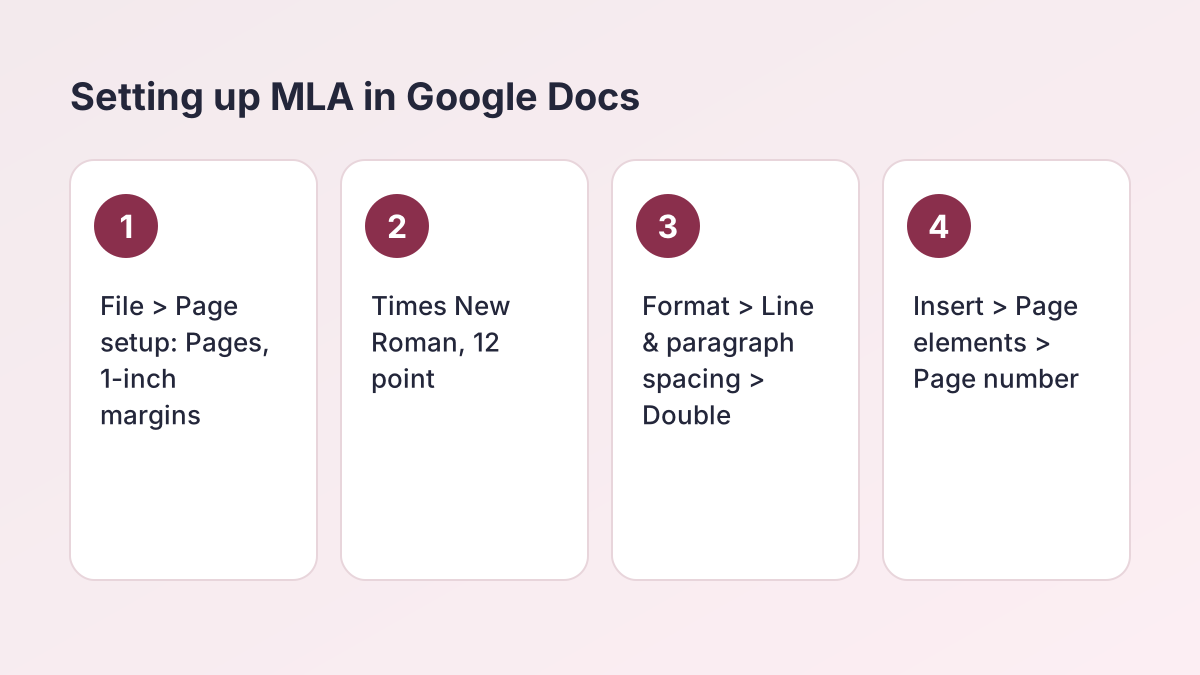
The Works Cited page starts on a new page after the last line of your essay. The MLA citation format in Google Docs follows the same rules as anywhere else; Docs just gives you the tools to lay it out.
Set up the page
- Click at the end of your last paragraph and go to Insert > Break > Page break.
- Click Center align and type Works Cited, in plain text with no bold or quotation marks.
- Press Enter and switch back to Left align. Remove the first-line indent if it carried over.
Add your entries
Type or paste each entry, one per paragraph, in alphabetical order by the first word, ignoring A, An and The. If you paste from another site, use Edit > Paste without formatting (Ctrl + Shift + V) so the font and spacing stay consistent. Then put titles back in italics where they belong. To get the MLA citation format in Google Docs right for each entry, use the free MLA citation maker, which handles books, articles, websites and films.
Citations inside your paper
MLA citation format in Google Docs also covers your sentences: each entry needs a matching citation, such as (Fitzgerald 23). The guide to MLA in-text citations covers those, and the MLA works cited page guide covers order, spacing and more examples. Citing videos? See how to cite a YouTube video in MLA.
How to Do a Hanging Indent in Google Docs
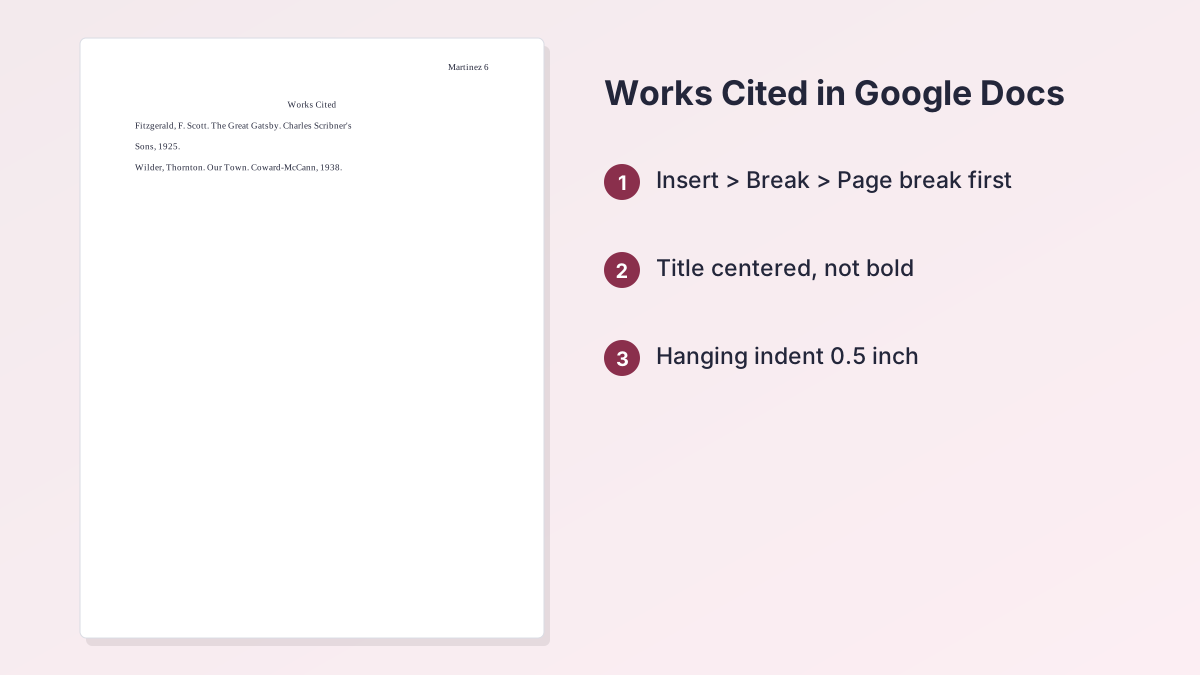
A hanging indent keeps the first line of each entry at the left margin and indents the lines below it half an inch, so the author names line up down the page. A hanging indent in Google Docs is the step students search for most.
The menu method
- Select all of your Works Cited entries, but not the centered title.
- Go to Format > Align & indent > Indentation options.
- Under Special indent, change None to Hanging.
- Make sure the measurement is 0.5 inch, then click Apply.
The ruler method
Turn on the ruler with View > Show ruler if it's hidden. Select your entries, drag the blue triangle (the left indent) to 0.5 inch, then drag the blue bar (the first-line indent) back to 0. The result is the same hanging indent in Google Docs, but the menu is more precise.
If it doesn't look right
If your hanging indent in Google Docs covers only some entries, you didn't select them all; select them and apply it again. If the second line doesn't indent, the entry probably has a manual line break. Delete it and let the text wrap on its own.
Make MLA Your Default and Download a Word File
If you write MLA papers all year, save the settings so every new document starts with MLA format Google Docs settings.
Save your default style
- Type a line of text, set it to Times New Roman 12 with double spacing.
- Select it and go to Format > Paragraph styles > Normal text > Update 'Normal text' to match.
- Then choose Format > Paragraph styles > Options > Save as my default styles.
- For margins and Pages format, open File > Page setup, set them, and click Set as default.
New documents now open with your font, spacing and margins. You'll still add the header and heading each time.
Download a .docx for Word or a class portal
Go to File > Download > Microsoft Word (.docx). Open the file once before you submit to make sure the header, page numbers, indents and fonts came through. If your teacher wants a PDF, choose PDF Document (.pdf) from the same menu.
Start from a ready first page
If you'd rather skip the setup, the MLA heading and title page tool downloads a Word file with the margins, spacing and running head already set; upload it to Google Drive and open it in Docs. Every other guide is on the student writing guides page.
Common Google Docs MLA Format Mistakes
Teachers see the same few MLA format Google Docs errors again and again. Run through this list before you submit.
| Mistake | Why it happens | Fix |
|---|---|---|
| No header at all | The document is in pageless format | File > Page setup > Pages |
| Arial 11 text | Docs default font | Times New Roman 12 |
| 1.15 line spacing | Docs default spacing | Format > Line & paragraph spacing > Double |
| Heading typed in the header | Clicked into the header area | Move it to the body of page 1 |
| Bold Works Cited title | Formatted like a heading | Plain text, centered |
| Entries without a hanging indent | Skipped Indentation options | Special indent > Hanging, 0.5 inch |
| Pasted fonts in citations | Copied with formatting | Paste without formatting |
A two-page check
Open File > Print to see the pages as your teacher will. Page one should show the running head, heading, centered title and an indented paragraph. The last page should show Works Cited centered with hanging indents. If both look right, the pages between them almost always do too.
MLA Format in Google Docs FAQ
How do you do MLA format on Google Docs?
Switch to Pages format, set 1-inch margins, Times New Roman 12 and double spacing, add your last name and page number at the top right, type the four-line heading, center the title, and indent paragraphs half an inch. That's the full MLA format Google Docs checklist.
Does Google Docs have an MLA template?
Yes. The Google Docs MLA template is in the Template gallery: open it from the Docs home screen and find the MLA Report in the Education section. Replace its placeholder text and add your last name to the header.
How do you do a hanging indent in Google Docs?
To make a hanging indent in Google Docs, select the entries, go to Format > Align & indent > Indentation options, set Special indent to Hanging at 0.5 inch, and click Apply.
How do you do an MLA header on Google Docs?
Go to Insert > Page elements > Page number, choose the top-right option, then click before the number and type your last name and a space.
Why can't I add a header in Google Docs?
The document is probably in pageless format. Go to File > Page setup, choose Pages and click OK, then insert the page number.
How do you double-space in Google Docs?
Select all, then go to Format > Line & paragraph spacing > Double. Check Custom spacing so the space before and after paragraphs is 0.
How do you indent MLA citations in Google Docs?
Works Cited entries use a hanging indent: Format > Align & indent > Indentation options > Special indent > Hanging, 0.5 inch. That's the standard MLA citation format in Google Docs.
How do you make MLA format the default in Google Docs?
Set the font and spacing, then use Format > Paragraph styles > Normal text > Update to match and Options > Save as my default styles. For margins, use Set as default in Page setup.
More free guides
- MLA HeadingThe four-line first-page heading and the page header, with Word and Google Docs steps.
- MLA In-Text CitationsAuthor-page citations for every kind of source, with examples.
- How to Cite a Website in MLAWorks Cited entries and in-text citations for web pages.
- MLA Works Cited PageFormat, order and hanging indents, with a full example page.
- MLA Annotated BibliographyFormat, annotation types and a complete example.
- MLA Block QuotesWhen a quotation needs a block, how to indent it and where the citation goes.
See all 80 free tools for students
Related tools
Last updated by The Study Corp editorial team.